Search
No search results found
No search results found
With a small ESP32 and an RS485 adapter you connect a NIBE heat pump directly to Home Assistant. You get temperatures, degree minutes, hot water, compressor operation and alarms, and you can change settings such as the heating curve and offset. Everything stays local in your network, with no myUplink and no cloud service.
⚡ In short
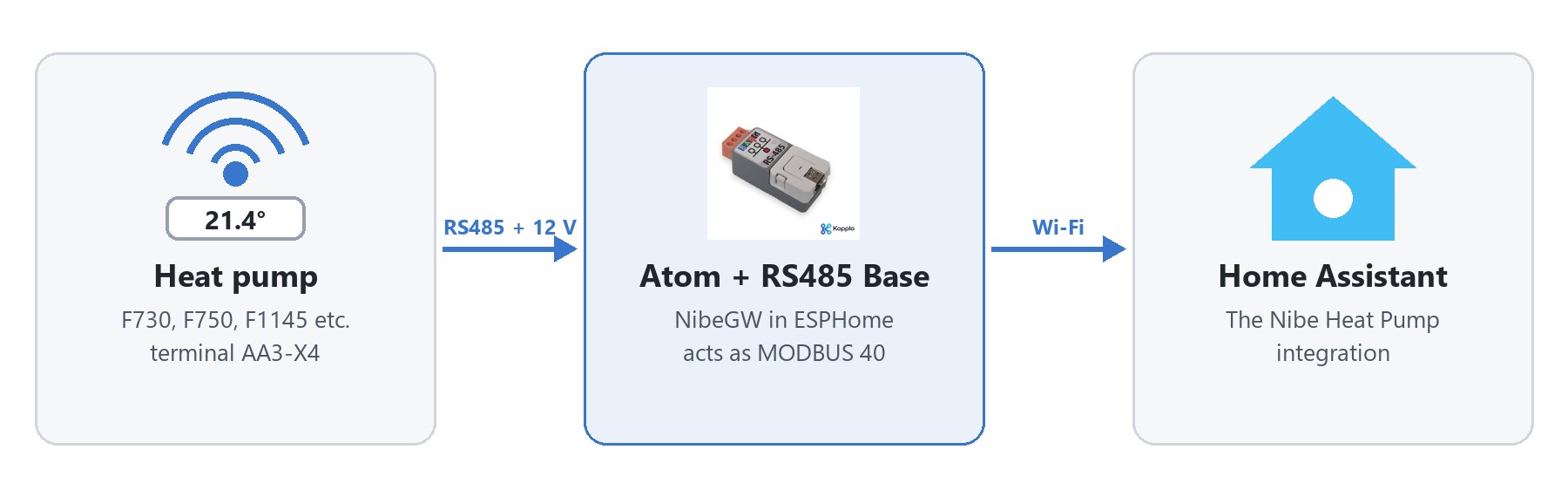
The Atom board sits on the heat pump's RS485 bus and forwards the data to Home Assistant over Wi-Fi.
| Models | Connection | Comment |
|---|---|---|
| F730, F750, F370, F470 | AA3-X4 | Exhaust air heat pumps, most common in houses |
| F1145, F1245, F1155, F1255, F1345, F1355 | AA3-X4 | Ground source heat pumps |
| VVM 225, 310, 320, 325, 500 and SMO 40 | See the manual | Together with F2040, F2120 and others |
| S series (S1155, S735 and others) | Network | Has built-in Modbus TCP and does not need this solution |
💡 Not sure about your model?
Other models that support MODBUS 40 may use a different terminal. Check the installer manual under accessories or MODBUS 40.
Do this at your computer before you connect anything in the heat pump. Connect the Atom board with USB-C and install ESPHome, for example with ESPHome Web or through the ESPHome add-on in Home Assistant. Then add the esphome-nibe (NibeGW) component to the board configuration:
external_components:
  - source:
      type: git
      url: https://github.com/elupus/esphome-nibe.git
    components: [nibegw]

wifi:
  power_save_mode: none

uart:
  id: nibe_uart
  rx_pin: GPIO5   # ATOM Lite: GPIO22
  tx_pin: GPIO6   # ATOM Lite: GPIO19
  baud_rate: 9600

nibegw:
  uart_id: nibe_uart
  acknowledge:
    - MODBUS40
  udp:
    target:
      - ip: 192.168.1.10   # Home Assistant
        port: 9999
    source:
      - 192.168.1.10       # Home Assistant
    read_port: 9999
    write_port: 10000
Replace the IP address (two places) with your Home Assistant and add the lines to your normal ESPHome configuration with Wi-Fi and api. The pins depend on the board:
| Board | RX | TX |
|---|---|---|
| AtomS3 Lite (C124) | GPIO5 | GPIO6 |
| ATOM Lite (C008) | GPIO22 | GPIO19 |
⚠️ Switch off the power first
The heat pump has 230/400 V inside. Switch off the power before you open it, and hire a qualified electrician if you are unsure.
Terminal AA3-X4 is on the input board behind the front cover. Wire it with the twisted-pair cable and keep A and B in the same pair:
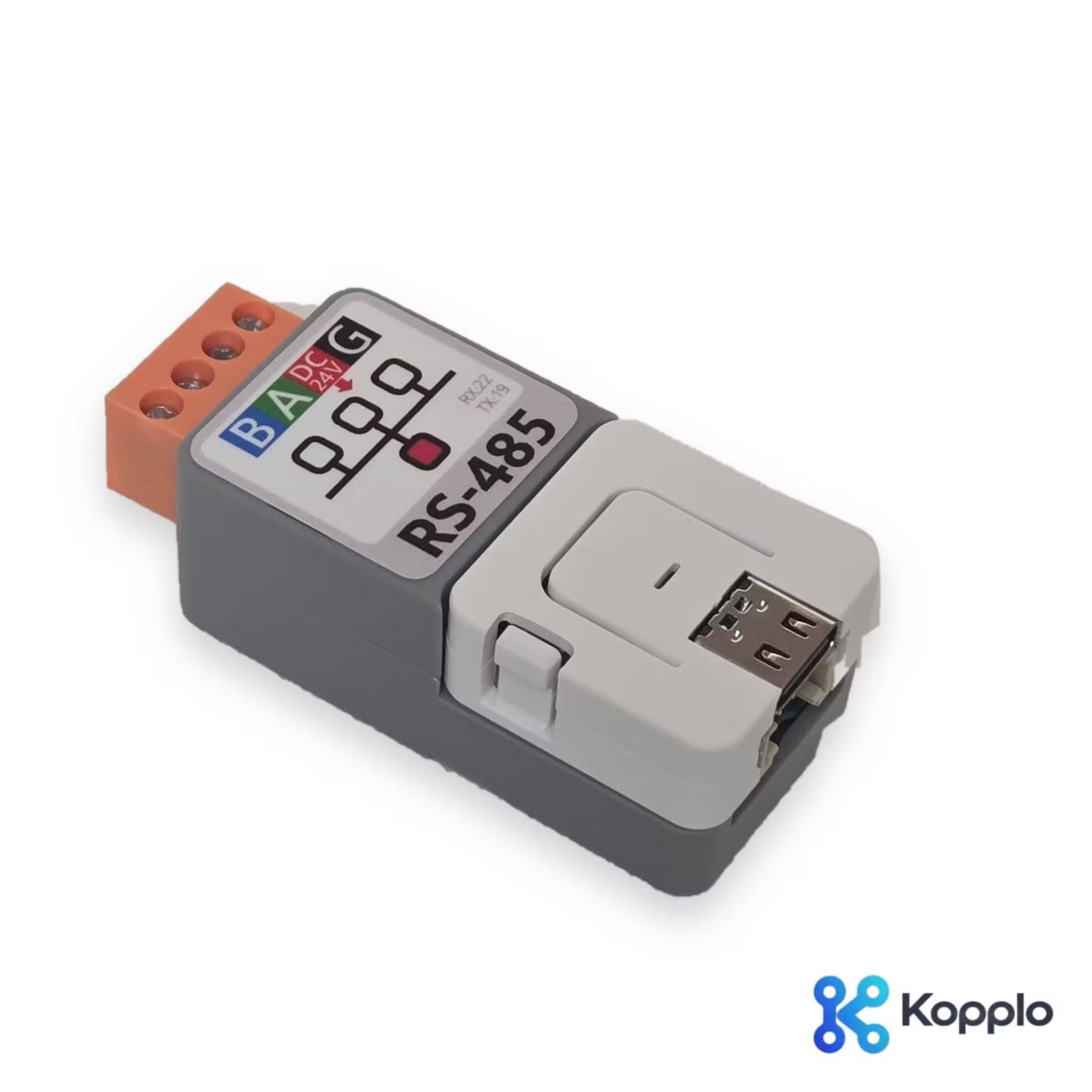
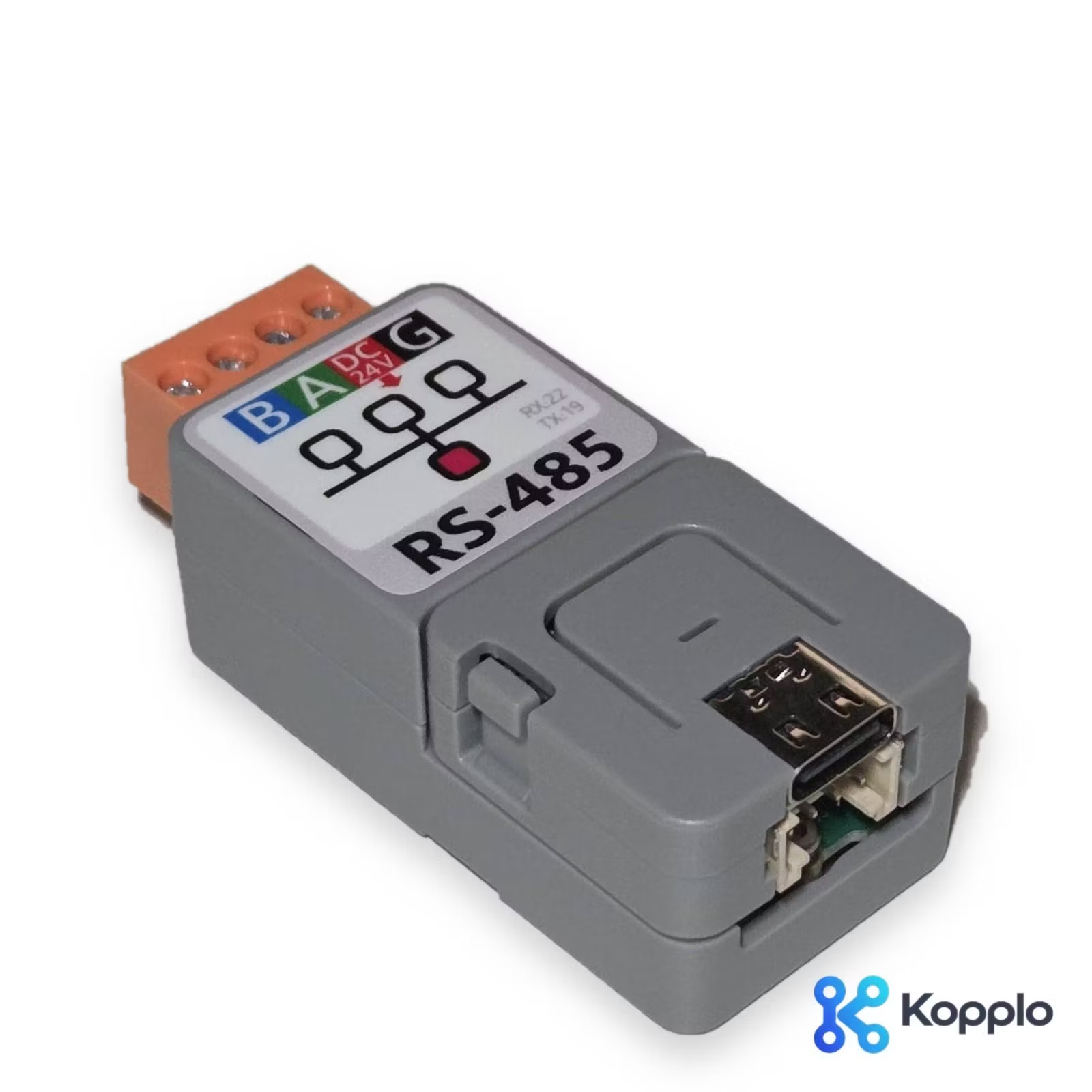
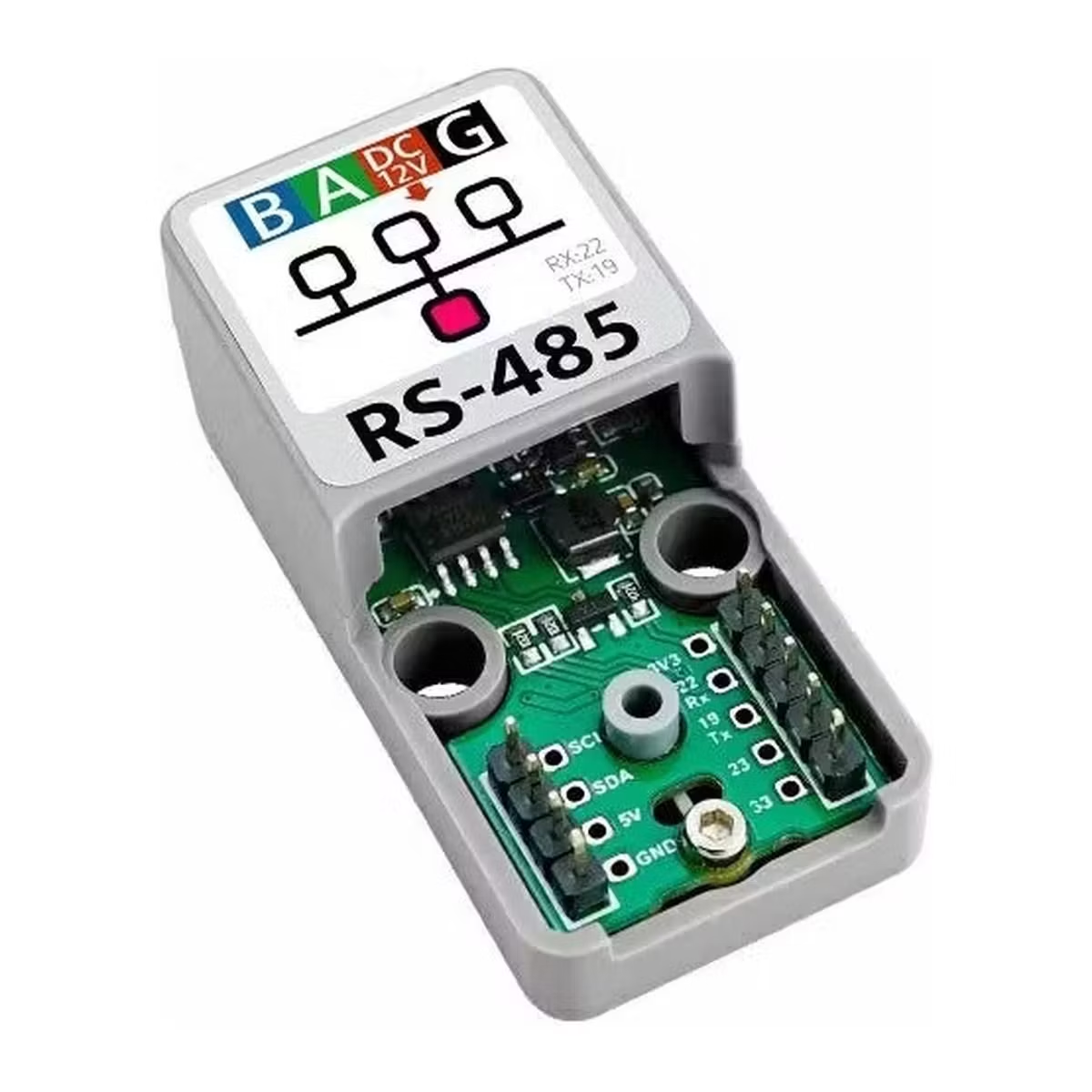
| RS485 Base | AA3-X4 |
|---|---|
| G (GND) | 9 |
| B | 10 |
| A | 11 |
| DC | 12 (+12 V) |
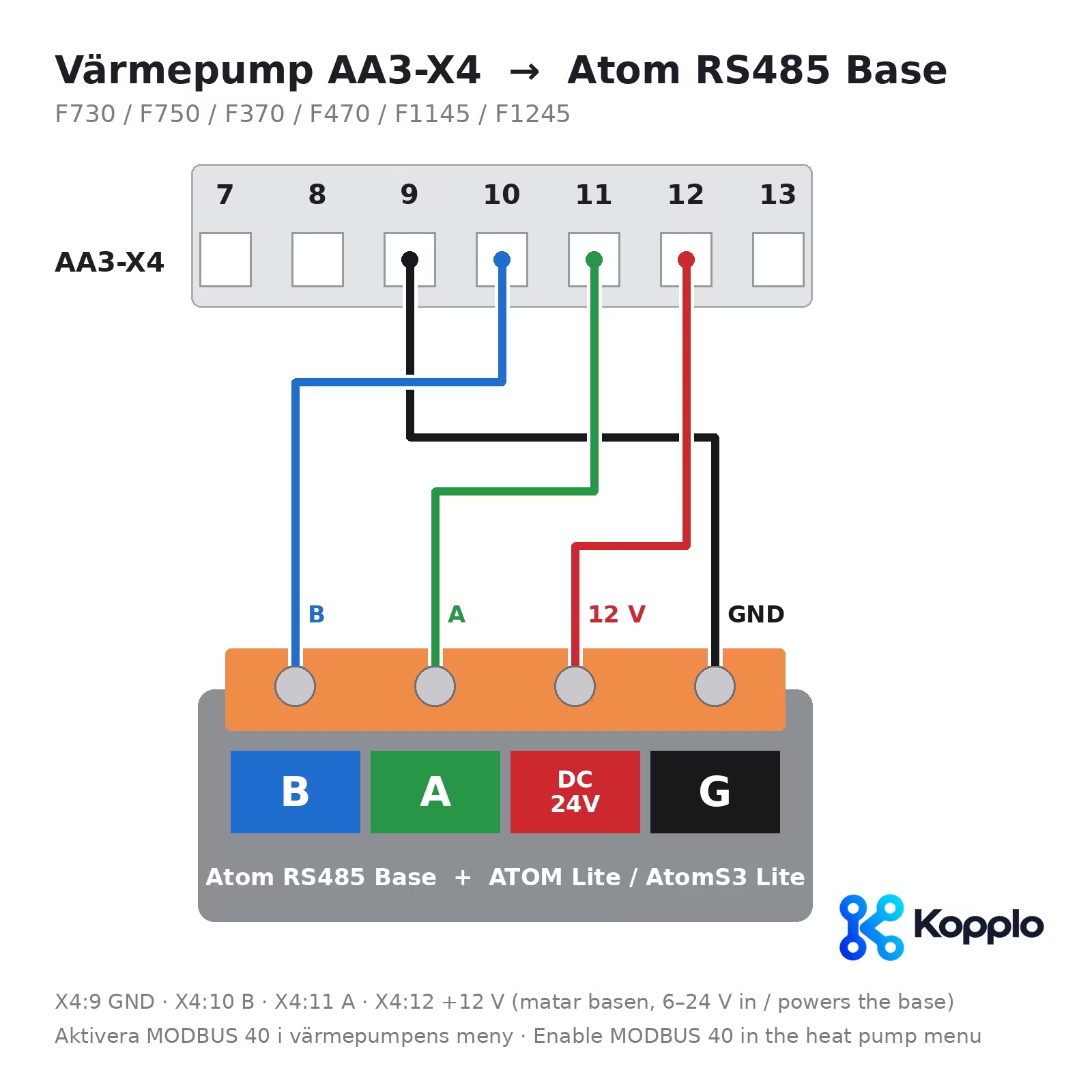
Wiring between the RS485 Base and terminal AA3-X4.
The base accepts 6–24 V, so the 12 V from the heat pump powers both the base and the Atom board. No power adapter is needed.
Switch the power back on. Go to the accessories menu (on the F730 and F750 usually menu 5.2.4, but the number can differ between models) and tick MODBUS 40. The heat pump then starts sending data on the bus.
💡 Enable it in the right order
If the board does not answer, the heat pump shows a communication alarm. So enable MODBUS 40 only when the board is connected and running.
acknowledge: MODBUS40 is included.More experience from other users is in the Home Assistant forum thread.
Do I need myUplink?
No. The solution is fully local and works even without internet.
Can I still use myUplink or NIBE Uplink?
Yes, they do not affect each other.
Can I control the heat pump, not just read it?
Yes. The integration can change the heating curve, offset and hot water mode, among other things.
Which kit should I choose?
Both work the same way. The AtomS3 Lite version has the newer ESP32-S3 and is our first choice. The ATOM Lite version has the most ready-made examples in the forums.
Everything you need in one bundle
The RS485 kit contains the Atom board and the RS485 Base and ships from our stock in Sweden.
View the RS485 kitWork inside the heat pump is at your own risk and may affect the manufacturer warranty. Kopplo is not responsible for damage to the heat pump or other property, for interruptions or for third-party software (ESPHome, NibeGW, Home Assistant). NIBE, MODBUS 40 and the model names belong to NIBE AB. Kopplo has no connection to NIBE, and this guide is not approved or sponsored by NIBE. The names are only used to describe which heat pumps the solution can be connected to.